ACKmail lets you read and organize email, write individual or batch messages, and work with a desktop AI assistant.
Connect an account
Open ACKmail from your system’s app launcher. For instructions on building or installing a test package, see the distribution guide.
- On the Connect mail account screen, choose Google, Microsoft (Outlook / Hotmail), or IMAP.
- For Google or Microsoft, sign in through your browser, authorize ACKmail, and return to the app. For manual IMAP setup, enter your email address and the server, port, and password specified by your provider. Use your provider’s recommended encryption setting.
- Wait for the first folders and messages to appear. Sync continues in the background. The progress indicators show how much of the mailbox and the current folder has been indexed.
ACKmail can remember several accounts and shows one at a time. To switch mailboxes, click Disconnect, then choose a saved account or add one. Delete account removes the account and its local data from ACKmail on this computer. Your messages stay on the server.
ACKmail uses IMAP to receive and organize mail. Sending requires an SMTP service that your provider supports and authorizes. If you can receive mail but cannot send it, check the error in the composer.
Read email
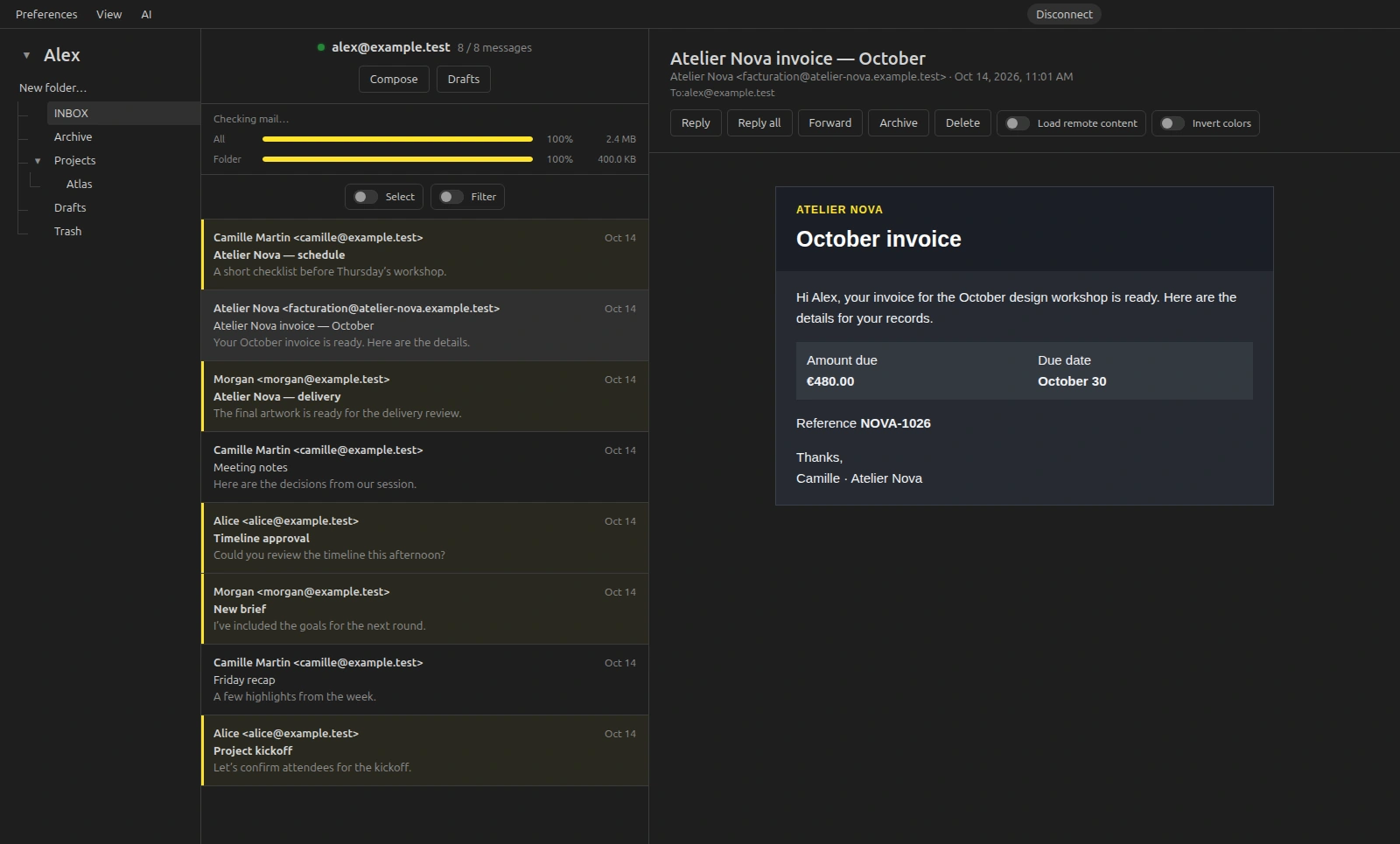
Folders are on the left, messages are in the middle, and the selected message appears on the right. Drag the dividers to resize the panels. ACKmail remembers their widths.
- Click a message to open it. Use the actions menu to mark it as unread or copy the sender’s address. To copy text from the message, select it in the reader and right-click.
- For an HTML message, use Load remote content to display external resources for that message. Invert colors can make some messages easier to read in your current theme.
- Open a received attachment in its associated app or save it to disk. If the attachment list fails to load, click Retry. ACKmail blocks direct opening of scripts and executables. You can still save those files to disk.
Search and filter
- Turn on Filter above the message list.
- Choose Current folder or All folders.
- Enter a keyword or select a suggested contact. You can also filter by Unread, Attachments, and a date range.
- Click Reset to return to the folder’s regular message list.
Search uses messages already in the local index. During the first sync, more results can appear as ACKmail indexes additional messages. To search by contact, choose the suggested email address. When an AI assistant displays a selection in ACKmail, that selection has its own filter. Click its close button to return to the regular view.
Organize your mailbox
Select several messages. Hold Ctrl on Linux or Windows, or ⌘ on macOS, while clicking messages. Use Shift+click to add a range in the visible list. A subsequent Shift+click adjusts that range and keeps the messages you selected individually. Hold Ctrl (or ⌘) with Shift to extend the selection while keeping the previous range. The last message you click opens in the reader. You can also use the selection mode above the list to check messages. Use the actions menu to move, archive, mark as read or unread, move to Trash, or mark the selected messages as junk. You can also drag the selection to a folder.
Manage folders. Expand the mailbox name in the left panel to create a top-level folder. Right-click a folder to access its available commands, such as creating a subfolder, renaming or moving the folder, viewing its details, or marking its messages as read. You can also drag a folder onto a new parent folder or onto the mailbox name to move it to the top level. The mail server may restrict changes to system folders.
Delete a folder. ACKmail asks you to confirm. Depending on the action you choose, messages are moved to Trash or ACKmail Backup before the folder is removed.
Use Trash. You can restore a message to the Inbox, permanently delete it, or empty the entire Trash folder. Check your selection before confirming permanent deletion.
Mark mail as junk. ACKmail moves the message to the junk folder and attempts to tell the server about its status through IMAP. Your provider determines how it handles future messages from that sender.
Write email and save drafts
Click New message above the message list. From a received message, use Reply, Reply all, or Forward to start a draft based on that message.
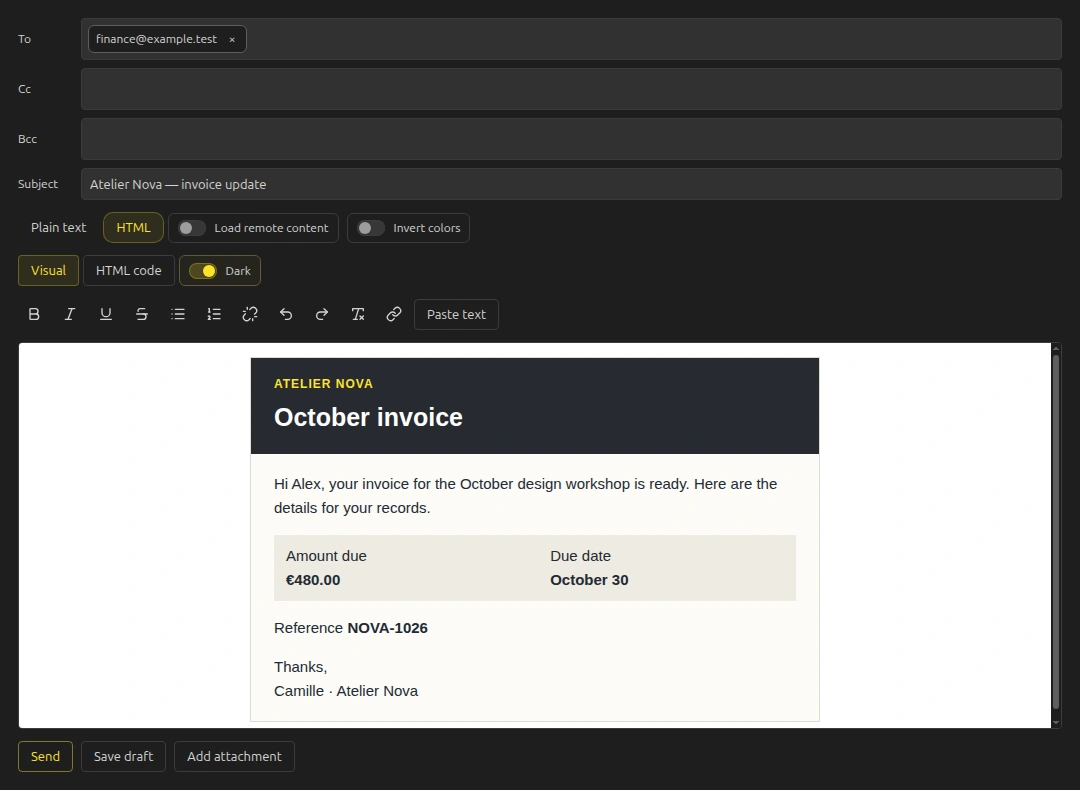
The To, Cc, and Bcc fields are at the top. Send, Save draft, and Add attachment are at the bottom.
- Recipients. Enter an address in To, Cc, or Bcc. Press Enter to add it or choose a suggested contact. Check the recipient list before sending a Reply all. Bcc addresses are hidden from other recipients.
- Plain text or HTML. Choose Plain text for an unformatted message. In HTML mode, use Visual to format text and insert links, or HTML code to edit the markup directly. Use the Dark toggle in the visual editor to check how the message looks against a light or dark background.
- Attachments. Click Add attachment or drop files into the composer. You can select several files at once. The file picker reopens the last folder you used during the current session if that folder still exists. ACKmail reads the original files when saving or sending. If a file is missing, restore access to it or remove it from the draft. ACKmail allows up to 20 attachments per message, 25 MB per file, and 100 MB combined. Your provider may impose a lower limit.
- Drafts. Click Save draft to store the message in the server’s Drafts folder. Use Drafts in the mailbox to select messages to reopen or delete. ACKmail also saves a local recovery copy while you work so you can resume interrupted drafts.
Work with batches
Click Batch messages above the message list. A batch can contain up to 100 messages. Each message has its own recipients, subject, body, and attachments.
- Write your messages and check the ones you want to process. You can select all, deselect all, or reverse the selection.
- Under More options, you can add a message, import a list, export the selected list, save the selection to Drafts, or remove selected entries from the batch.
- Click Send selected and review the confirmation. Each selected entry is sent as a separate email. If some sends fail, check the individual results before retrying. Messages already confirmed as sent are skipped when you retry from the batch.
Export saves the selected messages, their status, and their attachments in a ZIP. A file used in several messages is stored once, while each message retains its own attachment names and references. Import accepts these ZIP archives and older ACKmail JSON lists. If the batch already contains work, ACKmail asks you to confirm before replacing the list. A ZIP supports up to 100 messages and 500 MB of distinct attachment data. The usual attachment limits also apply per message.
The batch window closes after all selected messages are sent successfully. The confirmation warns you if closing the batch would discard changes to unchecked drafts. Save those drafts before sending the rest if you want to keep them.
Use an AI assistant
- From the AI menu, choose Connect to ChatGPT Desktop or Connect to Claude Desktop.
- Quit the AI client completely and reopen it.
- In ChatGPT Desktop, open a local Codex conversation. In Claude Desktop, enable the integration if prompted. The connection works in those desktop environments.
| Task | What the assistant can do |
|---|---|
| Find email | Search by keyword, address, or filter, identify a contact, and read indexed messages in a conversation. |
| Review a mailbox | Group results by contact, domain, folder, month, or subject. Show an individual message or a selection in ACKmail. Opening a message in the reader can mark it as read. |
| Prepare a reply or a batch | Open and edit a draft, prepare a reply or forward, compose several messages, and save them to Drafts. |
| Work with files | Attach a local file whose path it knows to a draft or directly to messages in a batch. List or download received attachments and export email as text or JSON. |
| Organize messages | Create folders, mark messages as read or unread, and prepare batch moves, archiving, or deletion. ACKmail displays a review for actions that require your approval. |
Try asking “Find this quarter’s invoices and show them in ACKmail” or “Prepare two separate emails in a batch and attach the PDF I gave you to both.” Send the finished messages from the ACKmail composer.
The AI client can discover tools while ACKmail is closed. A request that needs the mailbox opens ACKmail if necessary. The assistant works with the active account. Results can be incomplete while folders are still being indexed. For manual setup and Linux or AppX details, see the MCP setup guide.
Set display and notification preferences
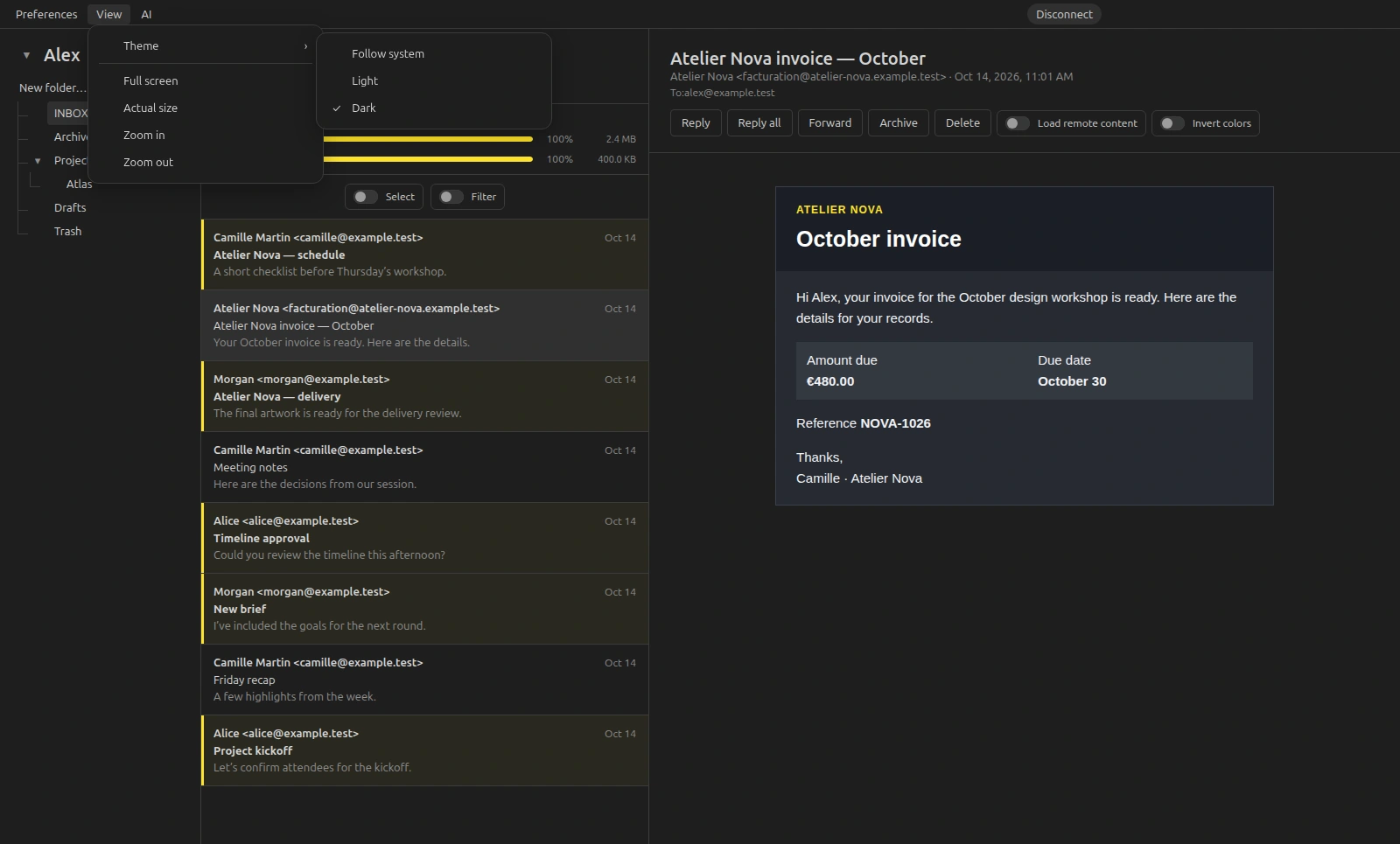
Choose View → Theme to change the application theme.
- In View, choose light, dark, or the system theme. This menu also has zoom and full-screen controls.
- In Preferences, change the language, enable new Inbox message notifications, or set defaults for remote content and message color inversion.
- The reader’s display controls apply to the current message. The HTML composer’s theme toggle lets you check the colors while writing.
Troubleshoot
| Situation | What to do |
|---|---|
| The connection drops or indexing stops | You can still read messages that have already been indexed. Use the retry control next to the sync progress. If Google or Microsoft authorization has expired, reconnect the same account. |
| The server rejects a send | Read the error in the composer. Correct the affected recipients or files before retrying. |
| ACKmail reports an unknown send result | Check Sent before retrying, especially after a dropped connection. |
| You try to quit during a server update | The closing dialog waits for the result. When the operation succeeds, click OK. If it fails or confirmation never arrives, you can return to ACKmail or close it. |
| Local drafts fail to restore | You can still read your mail. Use Retry in the banner. If the system key store is locked, unlock it and retry before writing another message. |
| The assistant cannot find ACKmail | Check the AI menu, fully restart your AI client, and open a compatible conversation. |
Understand local data
- The system key store protects credentials and local recovery drafts. The local index used for search and reading is stored in plaintext. If a disk is stolen, disk encryption protects that index while the volume is locked.
- ACKmail blocks remote images and other remote resources by default. Loading them can reveal that you opened a message to the sender or the service hosting the images.
- A connected assistant receives the mailbox information its tools request. It can access local files you ask it to attach. Check which account is active and what you want to share.
- Deleting an account in ACKmail removes its local copy. Permanently deleting mail from Trash removes it from the server.